Automating Property Inspection Reports: From PDF to Actionable Data

Snehasish Konger
Founder & CEO
Business
Request an AI summary of this page
Here's the thing nobody really talks about: the inspection is done, the inspector packs up and leaves, and then the real slow part starts.
Someone on your team gets a 40-60 page PDF in their inbox. Now they need to pull out the defect list, figure out which items are urgent, log them somewhere, maybe update a spreadsheet, notify the right person. Then do that again for the next report. And the next.
For a single property, that's manageable. But when you're running ten, twenty, fifty properties, it becomes a significant chunk of someone's week. And most of that time is just reading PDFs and retyping things.
What's Actually Inside a Typical Inspection Report
Inspection reports are not clean, structured documents. They're usually multi-page PDFs with a mix of free-form text, photos, condition ratings, checkboxes, and inspector notes that vary by who wrote the report.
A standard residential inspection covers roof, exterior, foundation, electrical, plumbing, HVAC, interior, insulation. Each section might have ten to thirty individual items. Each item might have a status like "satisfactory," "monitor," "repair," "safety concern." Then there are notes, photos, cost estimates, recommendations.
The problem isn't that the information isn't there. It's that the information is buried in an unstructured format that doesn't connect to anything.
You can't query a PDF. You can't filter a PDF by urgency level. You can't automatically create a maintenance ticket when a PDF says "repair immediately."
Where the Bottleneck Actually Lives
The inspection itself takes 2-4 hours. The report lands in 24-48 hours after that. But then — this is where things usually slow down — someone has to manually process what's in that report.
Real estate professionals spend roughly 50% of their time on document-related work. Inspection reports are a big piece of that. And because they're unstructured, they don't lend themselves to any shortcuts. You can't CTRL+F your way to a list of critical defects across twenty reports.
For agencies handling high volumes, this adds up fast. If you're processing 30 reports a month and each one takes 20-30 minutes to review and log manually, that's 10+ hours per month just on data entry from inspections. Not analysis. Data entry.
When Inspectify automated their inspection report processing, they cut time per report from 15 minutes down to 5 — roughly a 66% reduction. At scale, that's a meaningful amount of recovered time.
What "Automating" an Inspection Report Actually Means
It doesn't mean replacing the inspector. The inspection still happens. The report still gets written.
What changes is what happens after the PDF arrives.
Instead of someone opening the PDF, reading through it, and manually transferring data somewhere else, the PDF gets processed automatically. OCR reads the document. AI extracts the structured fields — property address, inspection date, items flagged by category, severity level, inspector notes. That data then flows into wherever you actually work: a spreadsheet, a Google Sheet, a property management database, a maintenance ticketing system.
Teams using automated document processing report up to 70% faster processing times and 40% cost savings.
The key shift is that the inspection data stops living in a PDF nobody can easily query, and starts living somewhere actionable.
Setting This Up With NexDoc
NexDoc is built for exactly this kind of workflow. You don't need to build custom software or hire a developer to make it work.
The basic setup looks like this:
Step 1 — Connect your source. Inspection reports usually come in via email, get saved to Google Drive, or land in a shared folder. NexDoc connects to these directly. You can pull documents from Google Drive, set up folder-based triggers, or let inspectors send reports to a dedicated email that feeds the pipeline automatically.
Step 2 — Run extraction. NexDoc's OCR and document intelligence layer reads the PDF and extracts the relevant fields. You define what you want: property address, inspection date, flagged items, severity, section-by-section breakdown, inspector recommendations. It handles scanned PDFs, image-based PDFs, and standard digital PDFs.
Step 3 — Map to your output. Extracted data goes where you need it. A Google Sheet that tracks all defects across your portfolio. A maintenance log. A client summary. A flagging system that highlights anything marked "safety concern" or "repair immediately." You set the rules; NexDoc runs them every time a new report comes in.
Step 4 — Trigger actions. This is where it gets more useful. Once data is extracted and structured, you can automate what happens next. A critical defect gets logged and a notification goes out automatically. A report summary gets generated and emailed to the property owner. A maintenance ticket opens in your system. These are all configurable without code.
What You Can Extract From an Inspection Report
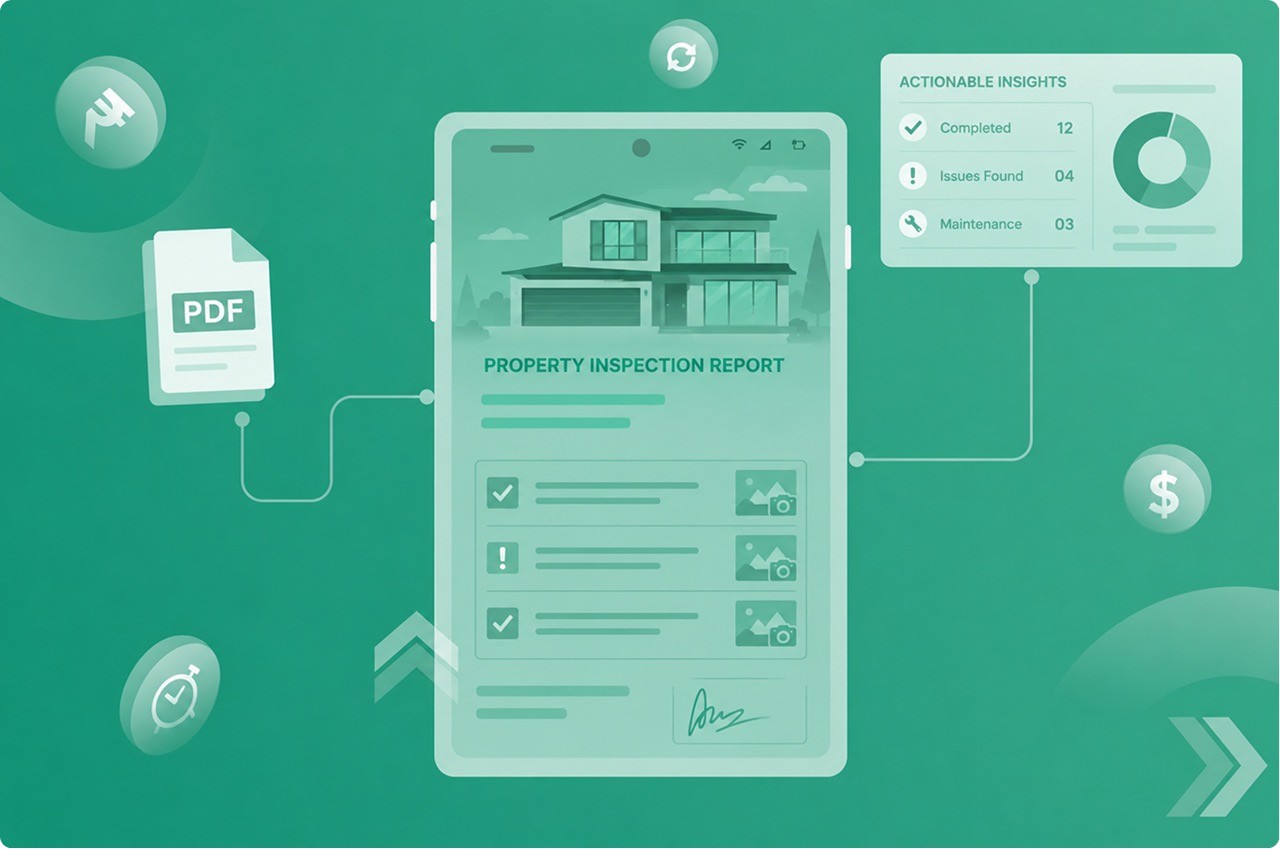
Here's what a properly configured extraction pipeline can pull from a standard inspection PDF:
Property address and inspection date
Inspector name and license number
Overall condition summary
Section-level results (roof, electrical, plumbing, HVAC, etc.)
Individual defect line items with severity ratings
Items flagged as safety hazards vs. maintenance recommendations
Estimated repair costs (where provided)
Photos linked to specific findings
Inspector notes and recommendations
Once this is extracted and structured, it becomes genuinely useful data. You can track defect trends across a portfolio. You can see which properties have recurring HVAC issues. You can generate consistent summary reports for owners without reading each PDF yourself.
The Formats That Actually Come Up
One thing worth knowing: inspection reports are not standardized across the industry. Different inspectors use different software, different templates, different layouts. Some use checkboxes, some use narrative prose, some mix both.
NexDoc handles variable document formats. You don't need every report to look the same. The extraction model learns the structure and pulls the right fields regardless of how the inspector chose to format their output.
AI-powered tools accept a wide range of document formats, including scanned PDFs and image-based files, then use OCR to convert the content into structured data. That matters in real estate inspection workflows because you're rarely dealing with one clean, consistent format.
A More Practical Workflow Example
Say you manage 25 residential properties. You get inspection reports coming in regularly — move-in, move-out, annual inspections, pre-sale inspections.
Without automation: Each report goes to your inbox as a PDF. Someone opens it, reads through it, creates a summary for the landlord, logs any repair items in a spreadsheet, follows up with maintenance. That's maybe 20-30 minutes per report.
With NexDoc: The PDF hits your connected folder. Extraction runs automatically. Within minutes, a structured record exists in your Google Sheet: property, date, defect list, severity flags. An email summary goes to the property owner. Anything tagged as "urgent" triggers a notification to your maintenance coordinator.
Your team still reviews the output. But they're reviewing structured, already-extracted data — not reading a 50-page PDF from scratch. This is where things usually get easier faster than people expect.
What This Doesn't Solve
It's worth being honest here. Automated extraction improves speed and consistency. It doesn't replace judgment.
Someone still needs to decide what repairs to prioritize. Someone still needs to interpret "monitor for signs of deterioration" in context. The AI extracts and structures — it doesn't make decisions about what matters.
What it removes is the manual, repetitive, error-prone part: reading, transferring, filing. That's the part that scales badly and produces inconsistent results. Extraction automation handles that layer. Your team handles what comes after.
Getting Started
If you want to test this on your inspection workflow, the fastest way is to grab a few recent inspection PDFs and run them through NexDoc to see what gets extracted.
Start with a simple output — just map the extracted data to a Google Sheet. Once you see what's coming out, you can refine the field definitions and add downstream automations.
You don't need a perfect setup on day one. Start with the reports that take the most time to process manually, get those working, and expand from there.